


A product image can attract attention and still create a business problem if it suggests something the customer will not actually receive. A brighter background may be harmless, but changing the product’s shape, material, colour, included accessories, or relative size can alter the offer itself. The risk becomes greater when one image is reused across social media, advertising, marketplaces, and product pages, because a small visual inconsistency can quickly spread across several customer touchpoints. For businesses producing content frequently, the challenge is therefore not simply making images look more polished. It is deciding which visual changes are creative presentation and which changes affect the truth of the product.
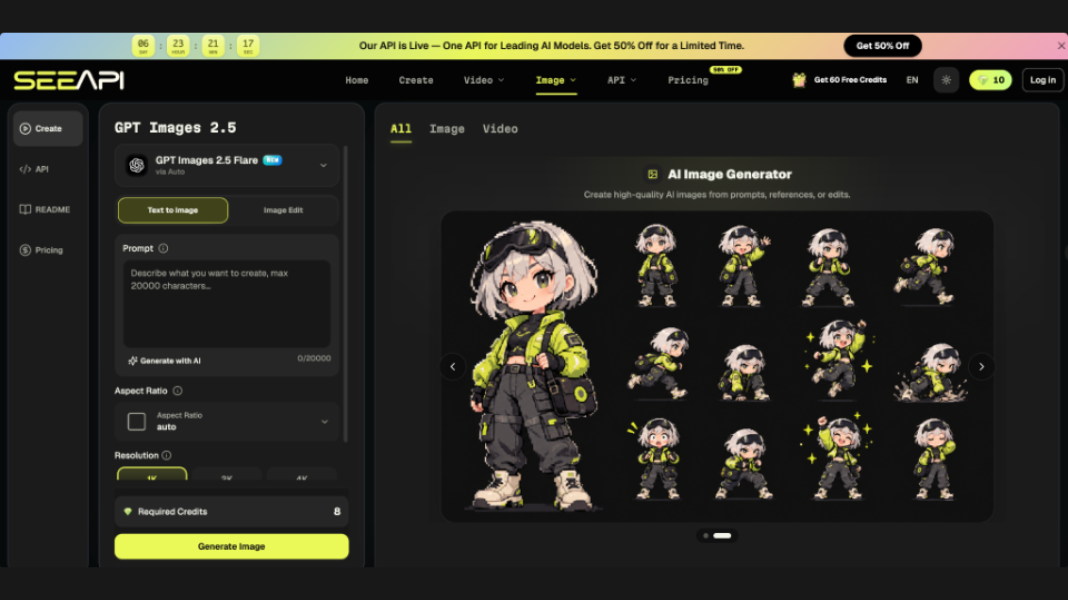
A reliable workflow starts by separating product facts from styling choices before any editing begins. This gives a marketing team a practical standard for generating variations without improvising every time. If an existing photograph shows the correct product but the setting does not suit a campaign, Image 2.5 API can be one route for exploring a revised scene from a reference image while keeping the original visual available for comparison. The useful discipline comes afterward: check the result against the real product, reject any version that changes a material fact, and approve only images that support the message customers will actually encounter.
Define What Product Images Must Prove
Before changing a background or creating a campaign variation, identify what the image has to prove. Product visuals usually carry two jobs at once: they make the offer attractive and provide evidence about what is being sold. Those jobs can conflict when creative treatment makes the product look larger, more premium, more complete, or differently coloured than it really is.
- Separate Product Facts from Creative Styling
Write down the characteristics a customer could reasonably use to judge the purchase: colour, shape, visible material, quantity, included components, packaging, proportions, and important labels. These are factual elements. Background colour, decorative props, lighting direction, seasonal scenery, and camera mood usually belong to the creative layer. The distinction gives reviewers a simple question: did the edit change presentation, or did it change the apparent offer?
- Choose Details That Must Remain Stable
Not every visible feature deserves equal protection. Select the few details that identify the product and would matter if they changed. A backpack may require the same pocket layout, zipper placement, silhouette, and colour blocking. A packaged food item may require accurate label placement, package shape, and product quantity. Recording these details before editing makes later review faster because the team knows exactly where to look for unwanted changes.
- Set the Scene Around the Offer
The environment should explain context without making unsupported claims. A desk lamp can appear on a home-office table if that setting helps customers understand use, but adding accessories that look bundled with the lamp may create confusion. When props are necessary, keep them visually secondary and ensure the product remains the main subject. The scene should answer “where might this be used?” rather than quietly changing “what do I get?”
- Decide What Counts as a Failed Image
Create rejection rules before reviewing variations. An image should go back for revision if the product changes shape, important text becomes unreadable, the colour moves outside the real range, an accessory appears included when it is not, or scale becomes misleading. These rules prevent teams from approving an attractive image simply because it looks impressive at first glance. A failed visual is one that makes the product less accurate, even if the composition itself is appealing.
Build Variations Around One Source Image
Once the factual boundaries are set, create campaign variations from one approved source whenever possible. This gives every experiment a common reference point. Instead of requesting “a better product ad,” define a single change such as a new seasonal background, more empty space for copy, or a different crop for a vertical placement. Narrow instructions make it easier to compare results and identify where visual drift entered the process.
Suppose a business has a verified studio photograph of a reusable bottle and wants an outdoor campaign version. At that stage, ChatGPT Images 2.5 API can be used with the reference image plus a brief that specifies an outdoor setting, the intended framing, and the product details that must remain unchanged. The tool can generate or edit the new scene from those inputs; The next step is not immediate publication. Compare the bottle’s silhouette, cap, colour, printed markings, and proportions with the source, then decide whether the variation stays within the approved boundaries.
For additional versions, change one major variable at a time. First test the environment. Then, if needed, adjust framing or lighting. Avoid changing the setting, viewing angle, props, and product position all at once, because a reviewer may struggle to identify why a later version feels inaccurate. Controlled iteration makes creative decisions easier to trace and reduces the chance that an unapproved product change becomes part of the campaign.
 Review Marketing Images Before Publishing
Review should happen in the channel where the image will appear, not only in a large editing preview. A product detail that looks accurate on a desktop canvas may disappear in a small social advertisement, while a wide campaign crop can make surrounding props look more important than the item itself. Check the image at its expected display size and inspect the areas that influence purchase interpretation.
Use a simple three-pass review. First, compare the product against the approved source and look only for factual differences. Second, review the composition: confirm that cropping, contrast, and props do not create a misleading impression about size, quantity, or included items. Third, read the image as a customer who has not seen the original photograph. Ask what that person would believe is being sold based only on the visual. If the answer differs from the real offer, the image needs revision.
Also compare campaign images with the product page. A social post may use a more dramatic environment, but the customer should still recognise the same product when arriving at the purchase page. If colour, shape, packaging, or visible features appear materially different, the transition creates unnecessary doubt. Keeping one verified source image in the review folder gives marketing, design, and ecommerce teams a shared reference rather than relying on memory.
Make Visual Accuracy a Repeatable Process
A useful product-image workflow does not restrict creativity; it gives creativity a defined area in which to operate. Start with a verified source, mark the product facts that cannot change, decide which environmental elements are flexible, and create rejection rules before producing campaign variations. Then review each result at its real display size and compare it with the source rather than judging it as a standalone picture. This sequence makes attractive imagery easier to evaluate because accuracy becomes a visible requirement rather than a vague expectation.
The same process can be reused across seasonal campaigns, social posts, landing pages, and marketplace assets. Over time, save approved references, recurring composition rules, and examples of rejected changes so future reviewers can make decisions faster. The result is a visual system in which teams can test new settings and creative directions without losing track of the offer itself. Customers may encounter different campaign scenes, but the product they recognise should remain consistent wherever the image appears.